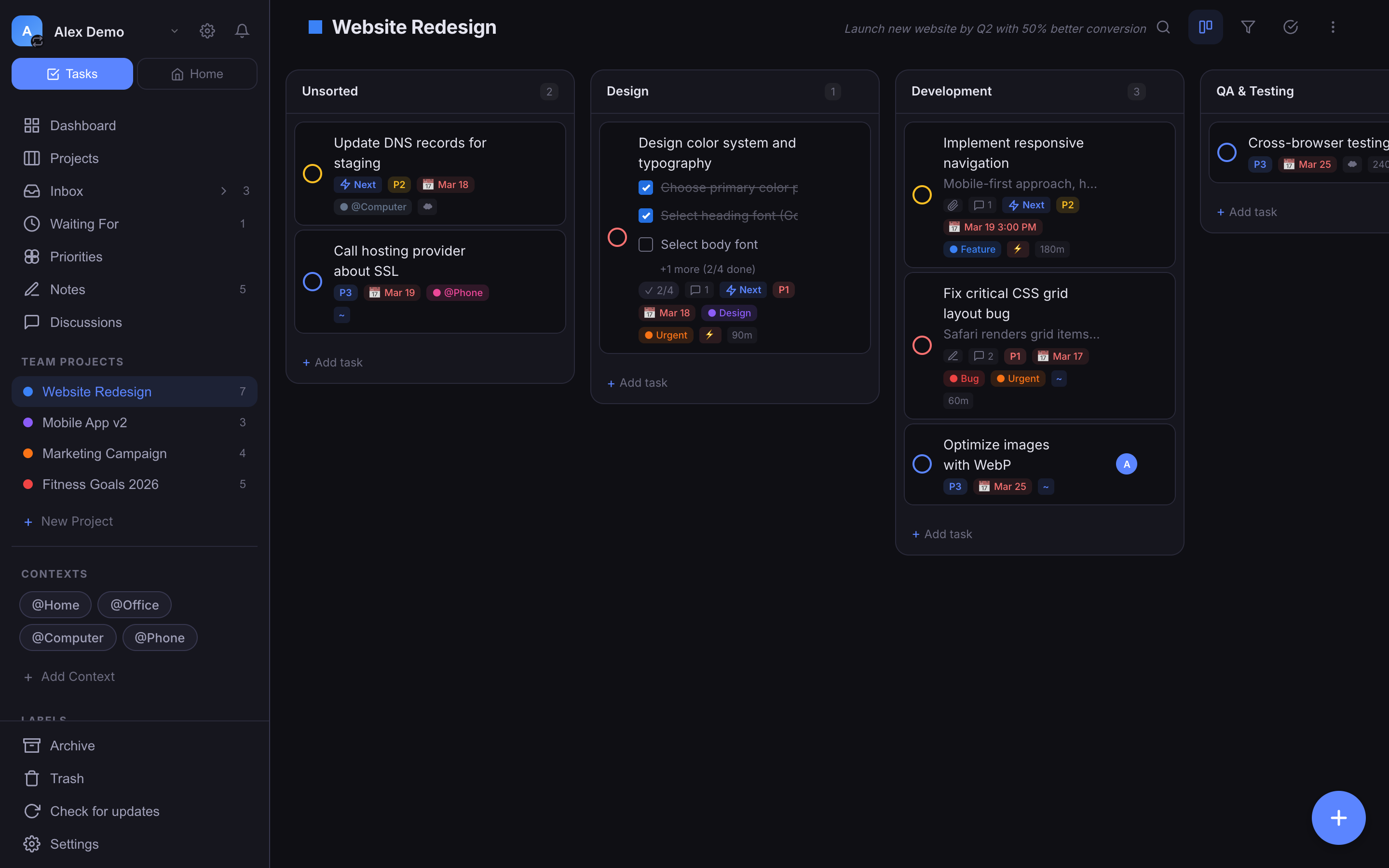
Kanban Boards
Kanban boards give you a visual overview of your project. Drag tasks between columns to update their status at a glance.
Using the board
1
Open any project
Select a project from the sidebar. The board view is the default layout.
2
Default columns
Every project starts with three columns: To Do, In Progress, and Done. You can rename them or create custom columns to match your workflow.
3
Drag tasks between columns
Click and drag a task card from one column to another to update its status. The change is saved instantly.
4
Add new sections
Click the "+" button to the right of your existing columns to add a new section.
5
Reorder sections
Drag column headers left or right to rearrange them.
6
Bulk operations
Hold Shift and click to multi-select tasks. Then move, delete, or update them all at once.
7
Task card details
Each task card displays at a glance:
- Priority level
- Due date
- Labels
- Assignee
- Subtask progress